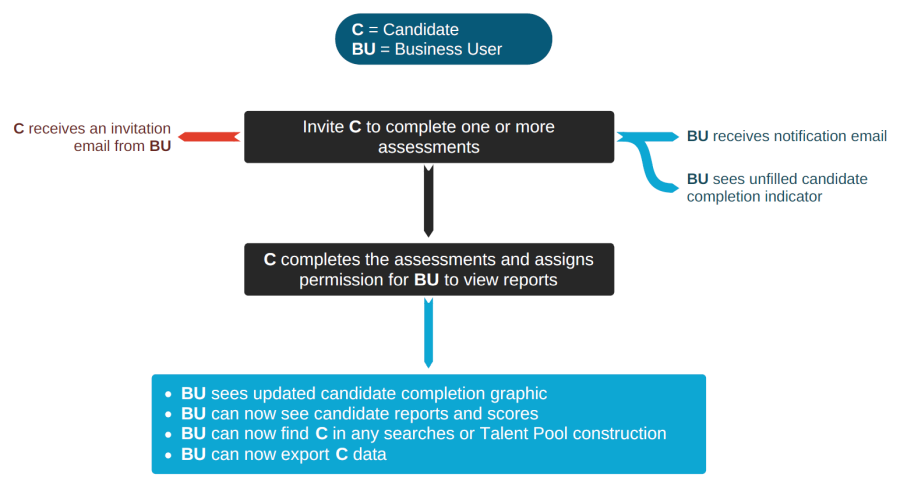
The process and key outcomes involved when inviting candidates to complete one or more assessments is shown in the figure below:
The initial invitation is generated either as part of project creation, or via adding a candidate (or candidates) to an already existing project.
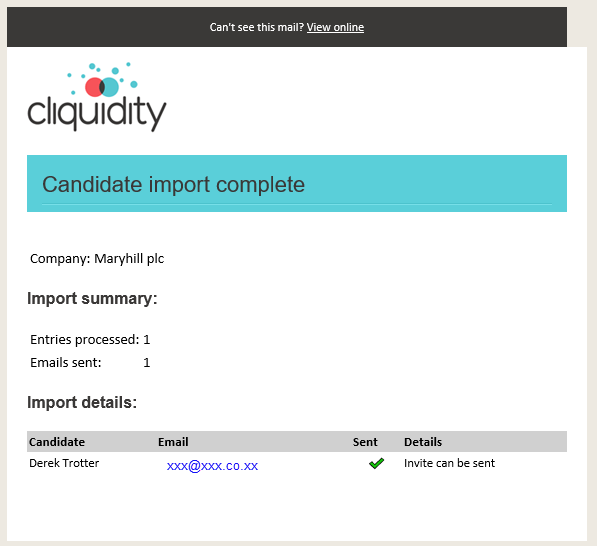
When an invitation is issued, the business user issuing that invitation will receive a notification email which will look like:
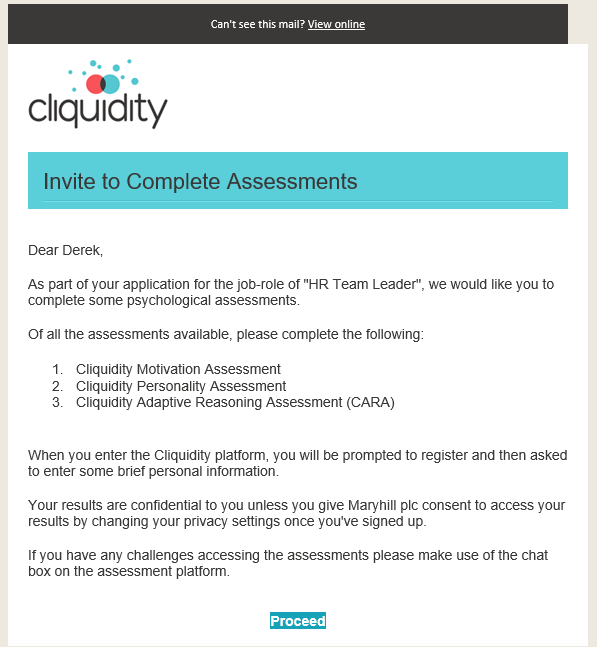
The candidate invitation email will look like:
Clicking on the  button, the candidate is prompted to login or sign-up for access to Cliquidity. Upon a successful login, the candidate then sees:

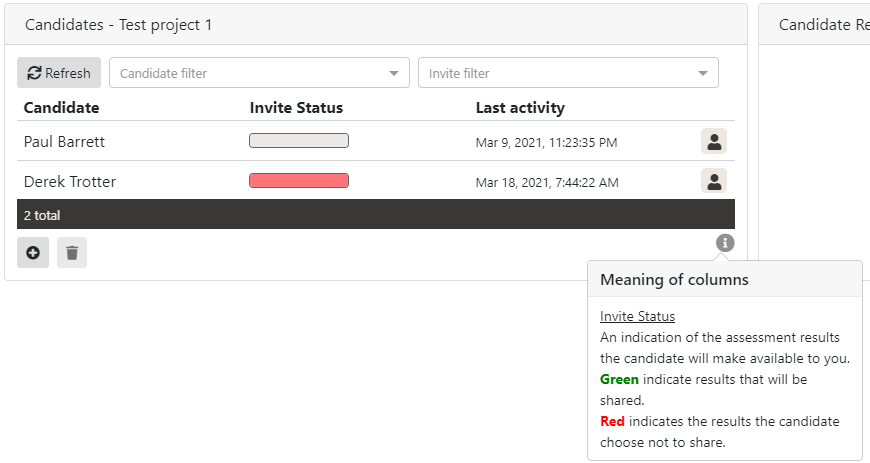
For the business user within Cliquidity, in the candidate area, the invited candidate will now appear with an unfilled "permission-to-share" status indicator graphic. This shows whether or not a candidate has agreed to share their assessment results with the business user.
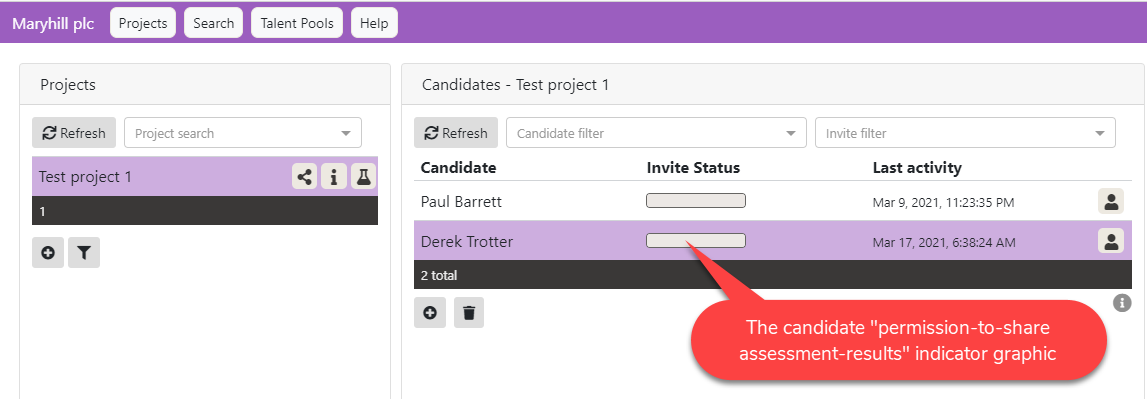
The indicator is grey as the candidate has not yet responded to the invitation to complete the assessments. When they do, the status indicator shows red or green, in proportion to the number of assessments for which they have given permission for the business user to view/share their results.

However, it is an indicator solely reflecting 'permission-to-share", not one that shows which assessments have been completed.
It is quite possible for a candidate to give "permission-to-share" to the business user but not have administered any assessments to themselves.
In the image below, Derek Trotter has declined to complete or share access to all his assessment results.
The New Candidate
The following video explains the processes involved when a new candidate receives an invitation to complete some assessments for the first time.

New candidate invitation process
For a candidate who has already signed up to Cliquidity
Who is now receiving an invitation email from a new company, and clicking on the "invites page" link they see when they click on the button in their invitation email:

The following video explains the processes involved for such a candidate:
Already registered candidate invitation
What happens now?
When a candidate responds to an invitation, agreeing to share their assessment results from a single assessment (e.g. Personality), even though three assessments comprised the invtation request:
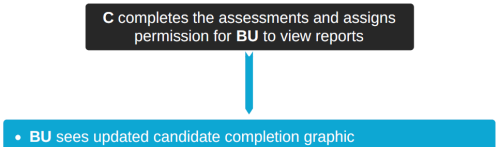
The business user who generated the invite now sees an updated status indicator against an invited candidate. E.g.
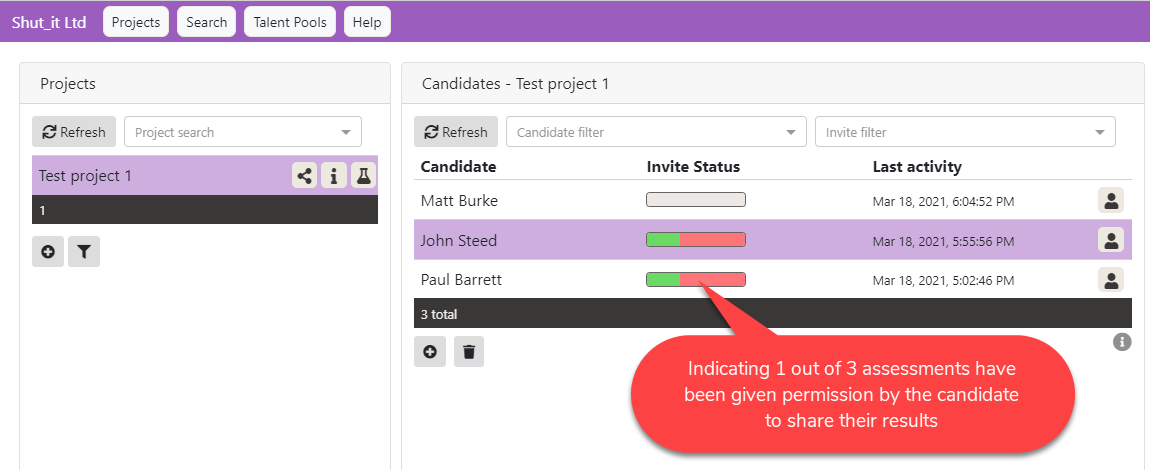
A brief video shows this information in more dynamic detail:
What the business user sees when a candidate shares some assesment results
With reference to the three other features now available to the business user (BU)

Section 2.2 - Looking at Candidate Results, provides the relevant information.
Section 2.4 - Searching for Candidates explains how the candidate might now be found in any search.
and Section 2.5- Creating a Talent Pool explains how candidate might be found and added to a Talent Pool, in any Talent Pool construction process.
The candidate data can now also be exported, as explained in section 2.3 - Exporting Candidate Data.