There are four ways of looking at candidate results:
 Clicking on the View Profile icon
  which is located at the far right of each candidate's project information:
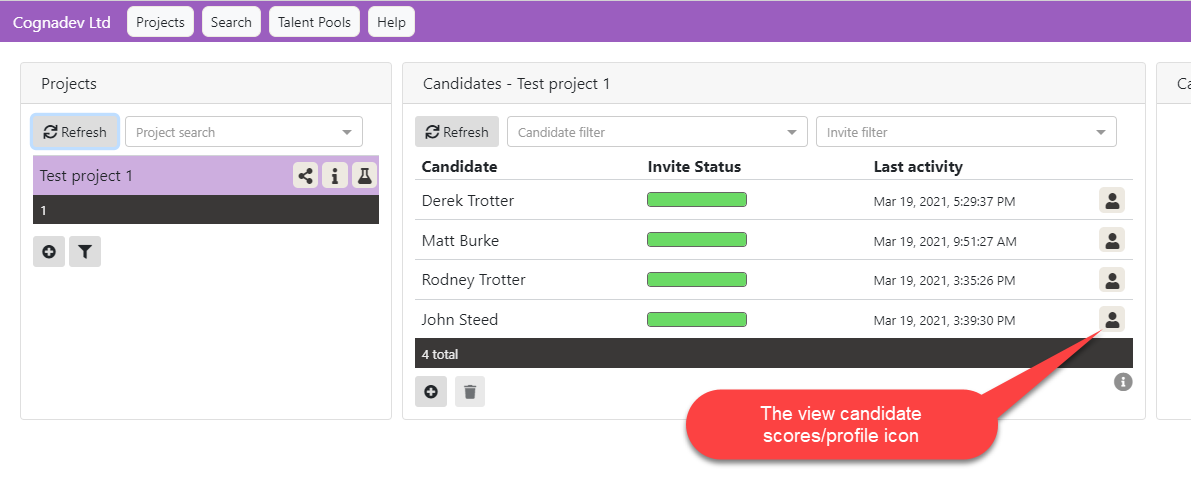
Clicking on this icon for John Steed shows:
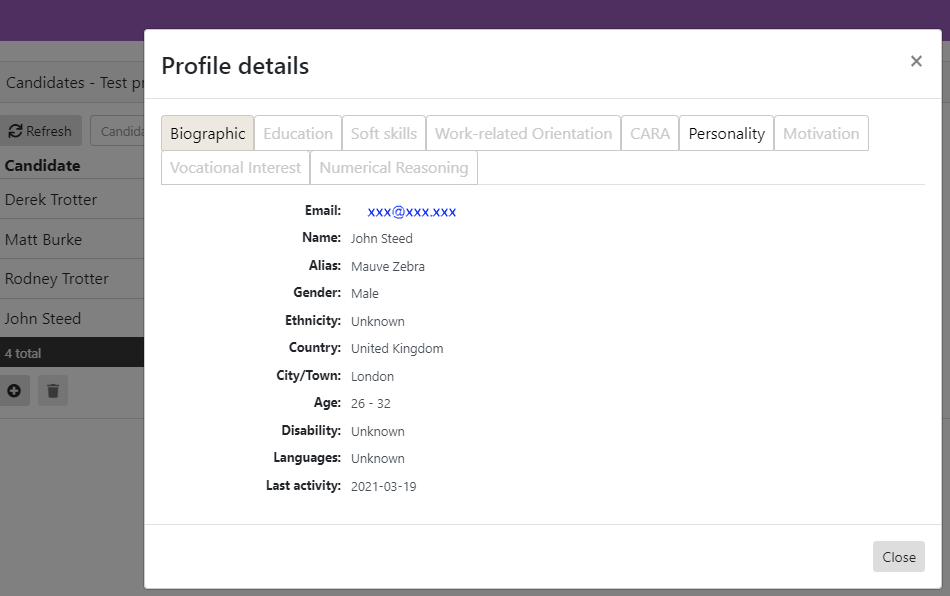
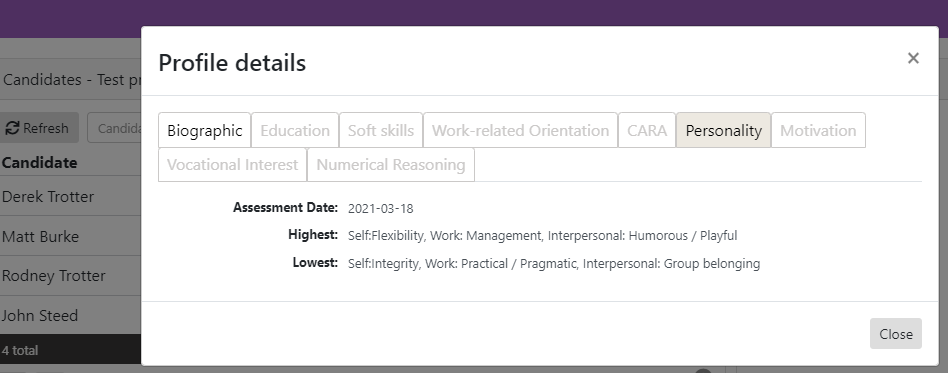
which shows he has only made available his personality scores for the current business user. If we click on the Personality tab, we see the summary assessment results:
 However, should we wish to view the assessment report itself, with all available score information, we would click on a candidate name to highlight it - and automatically populate the Candidate Results area with information, including on-screen pdf format and download access to the available test reports for that candidate.E.g.
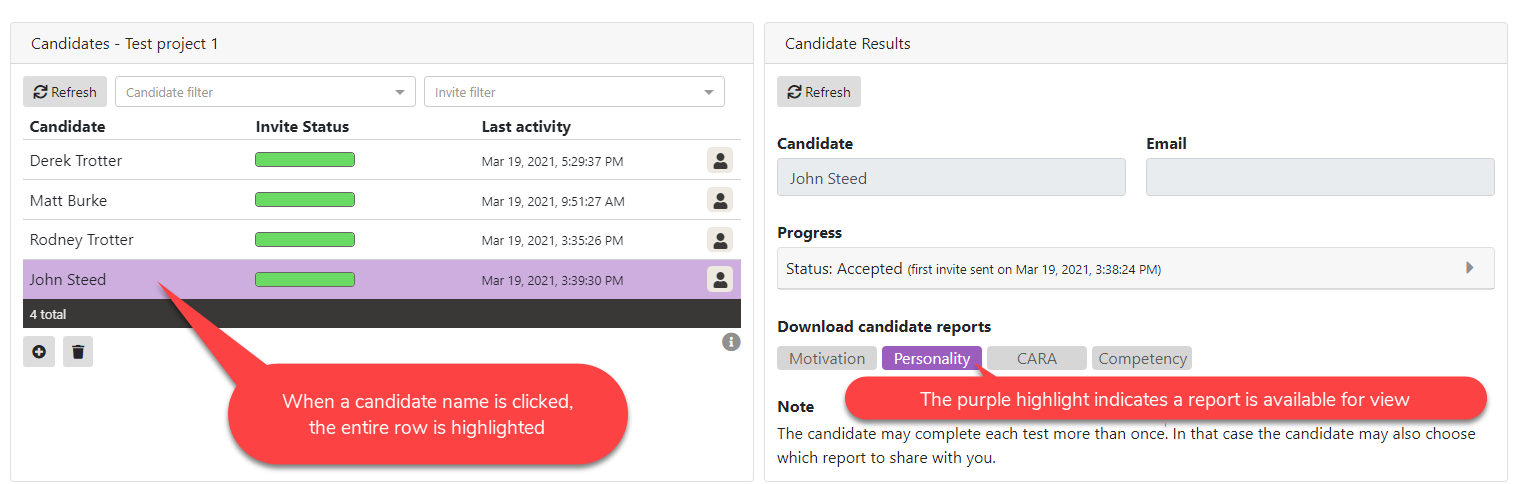
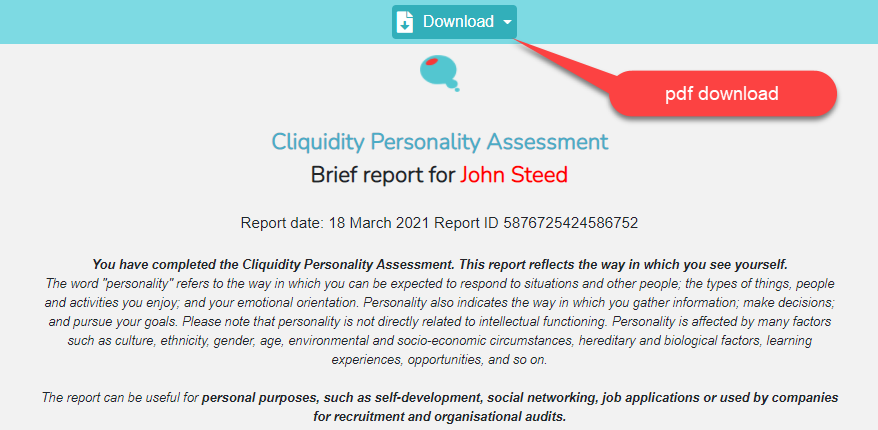
Clicking on the  button opens the pdf assessment report on-screen, as well as showing a pdf download button:
 We can also preview the candidate results from the Project area - clicking on the Candidate Results icon
  against a project:
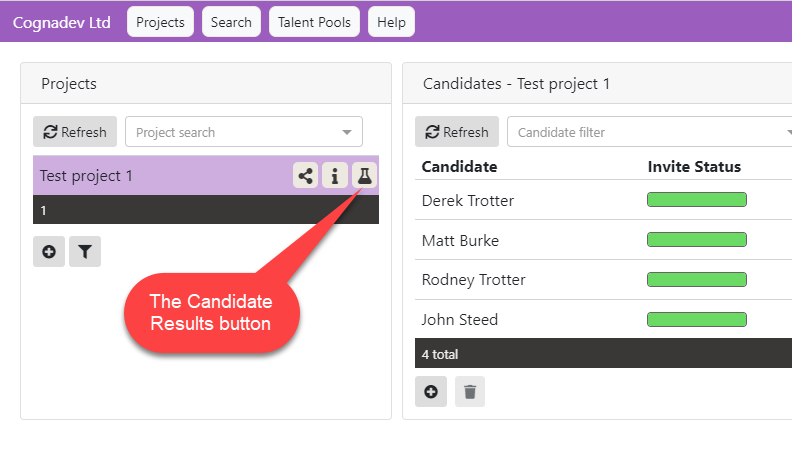
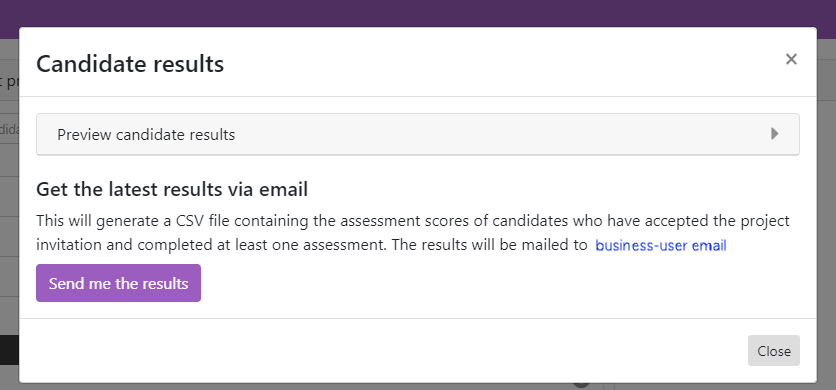
Clicking on this button shows the available scores for all candidates in the project:
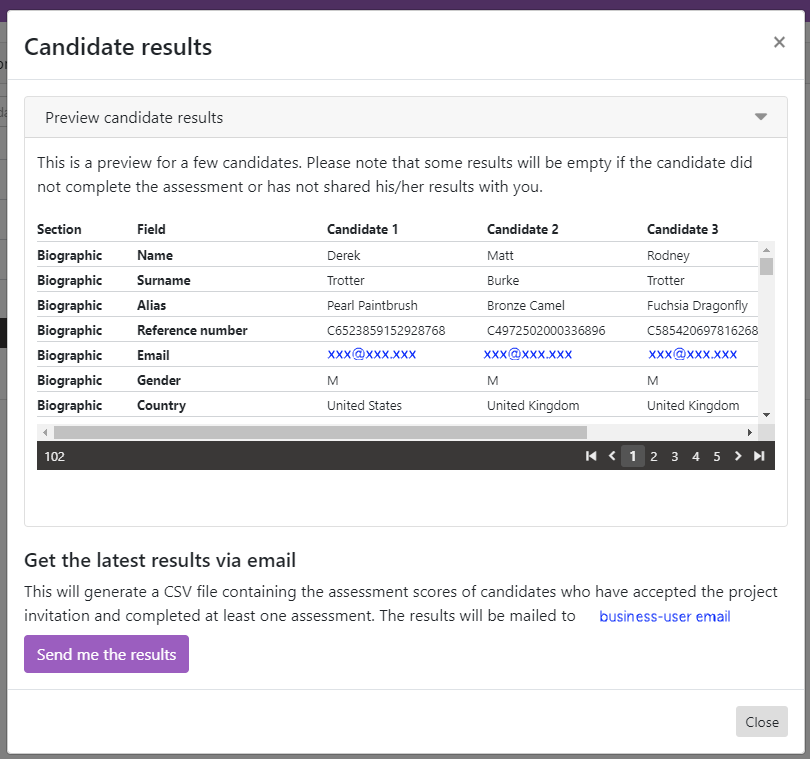
Then, clicking on:  reveals a scrollable table listing the project candidate biographical information and scores on all assessments:
 Following on from above, we can click on the:
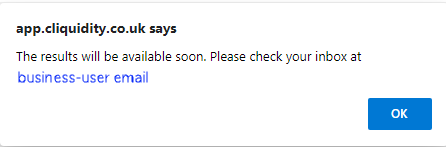
  button, which in turn exports the data to a csv file, as explained in detail in section 2.3 Exporting Candidate Data, showing a notification message:
A brief video runs through these options dynamically:

Options for looking at candidate data and reports