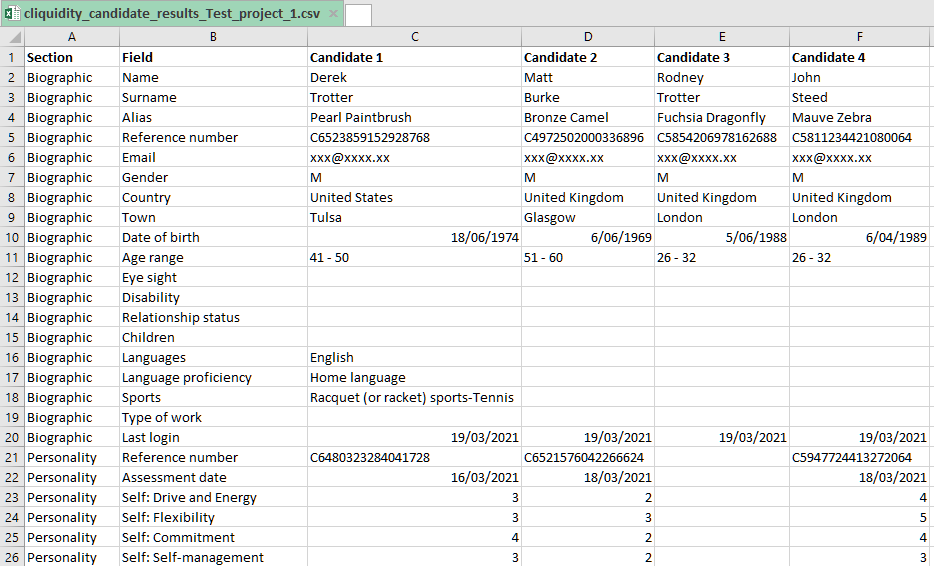
The available biographical data and scores for all candidates in a project, who have given permission to a business user to view/share their data, can be exported as a csv-format file sent to the business-user's email address.
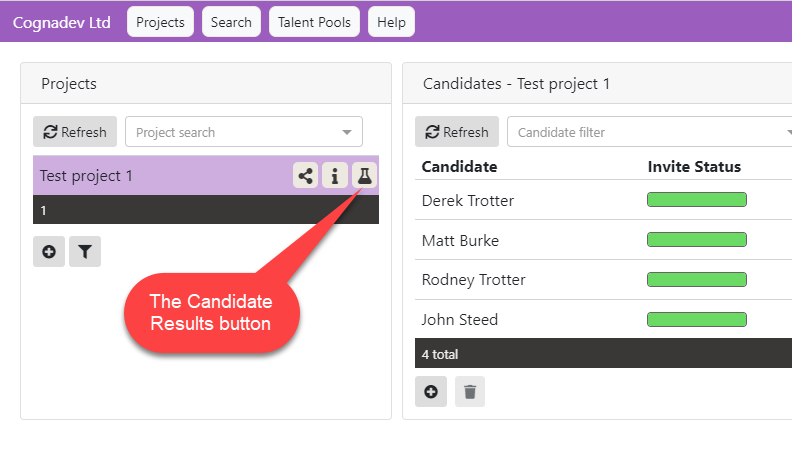
This is done by selecting the Candidate Results button in the Projects area:
Clicking on this button shows the available scores for all candidates in the project:
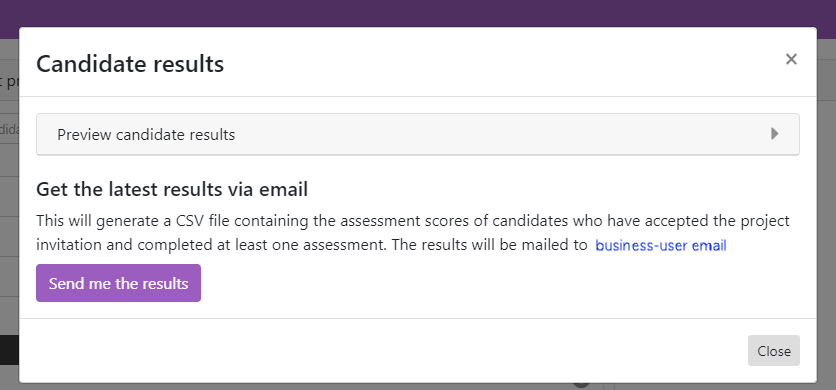
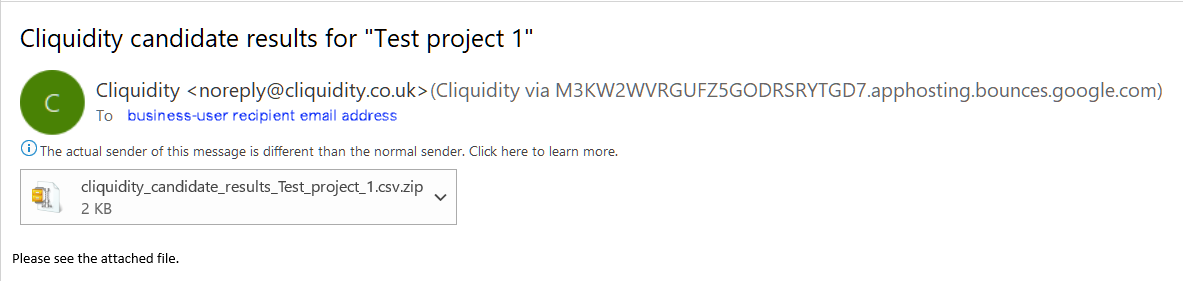
Then, clicking on the  button sends the csv data as a zip-file email attachment to the business-user ..
e.g. in Outlook the email will look like:

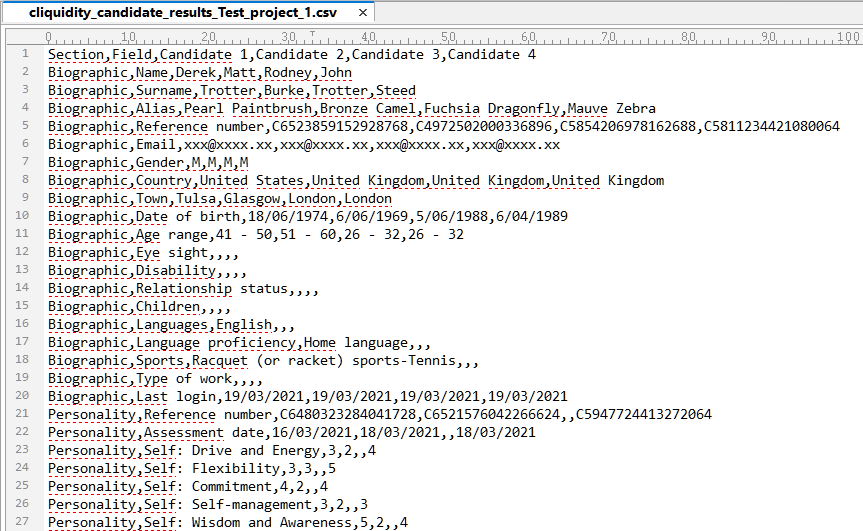
Unzipping the file creates a csv file of the same name. As noted in the Terminology section, the csv file is a text file, abl eto be opened with a variety of text editors such as Windows Notepad, or perhaps more conveniently for viewing purposes. opened with Excel or some other spreadsheet handling software.
Opening the file with a text editor shows the plain-text, comma-separated structure:
Opening the same file in Excel shows the column structure although not very clearly:
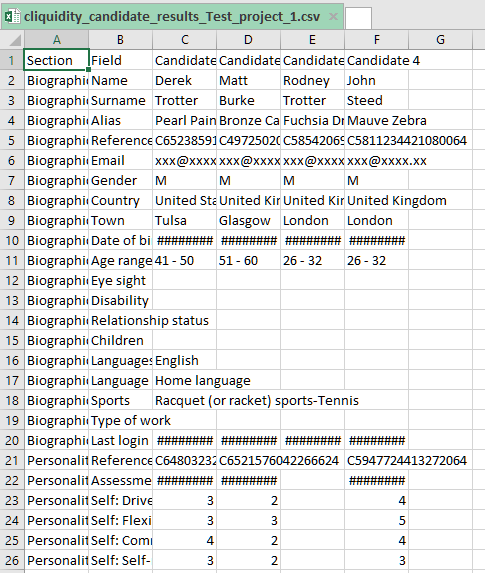
Manually adjusting column widths provides a more readable view: